
Manage warehouses
Add the US addresses you ship from. Required before creating shipments.
Add the US addresses you ship from. Required before creating shipments.
Why warehouses matter
Every shipment needs a ship-from address — that is the warehouse address printed on the label and used to look up carrier rates. Add at least one warehouse before you create your first shipment. Most sellers have one or two, but you can add as many as you operate.
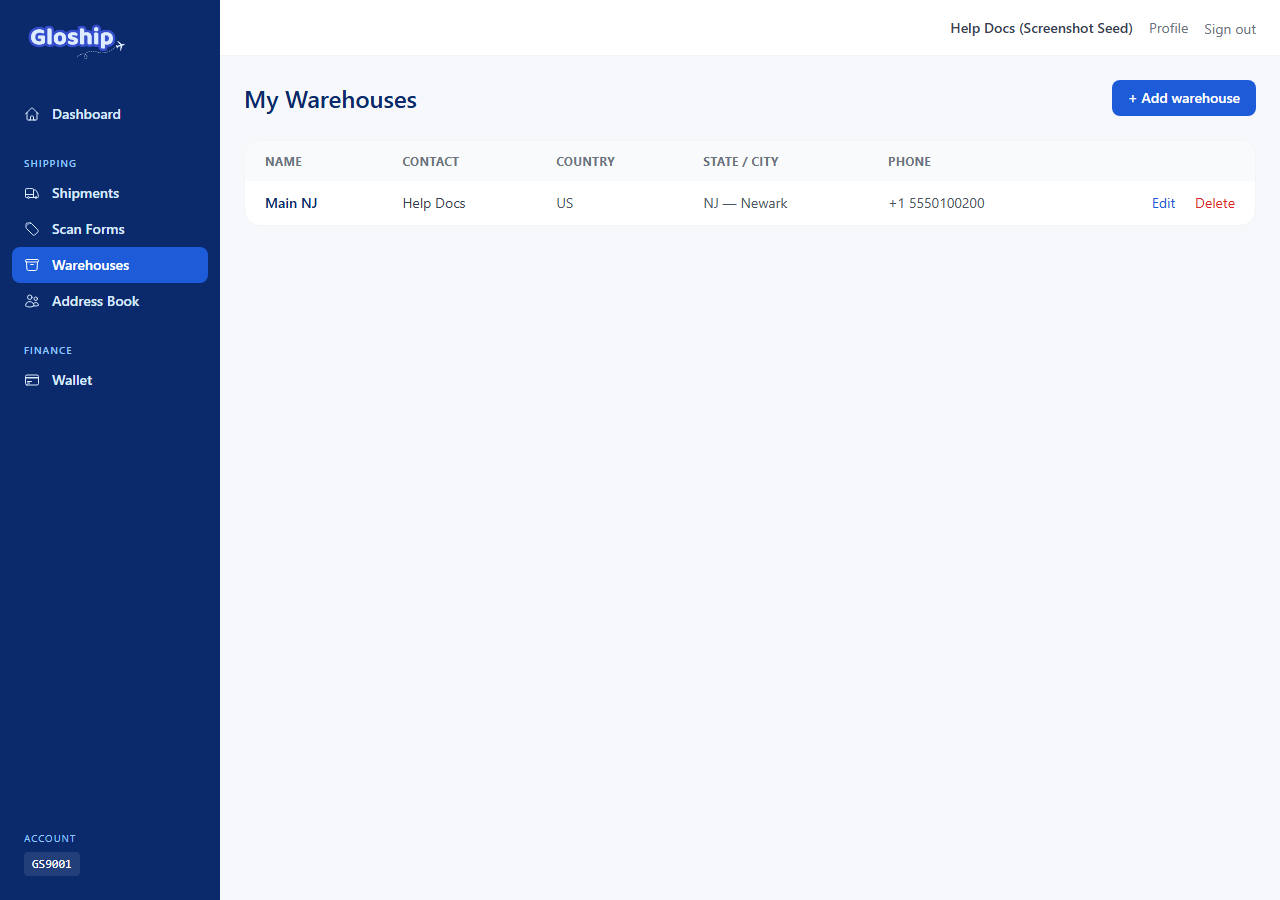
Open the Warehouses page
- Sign in to the customer portal.
- From the top nav, click Warehouses (or visit
/warehouses). - You see My Warehouses — a paginated list of every warehouse you have added.
Create a warehouse
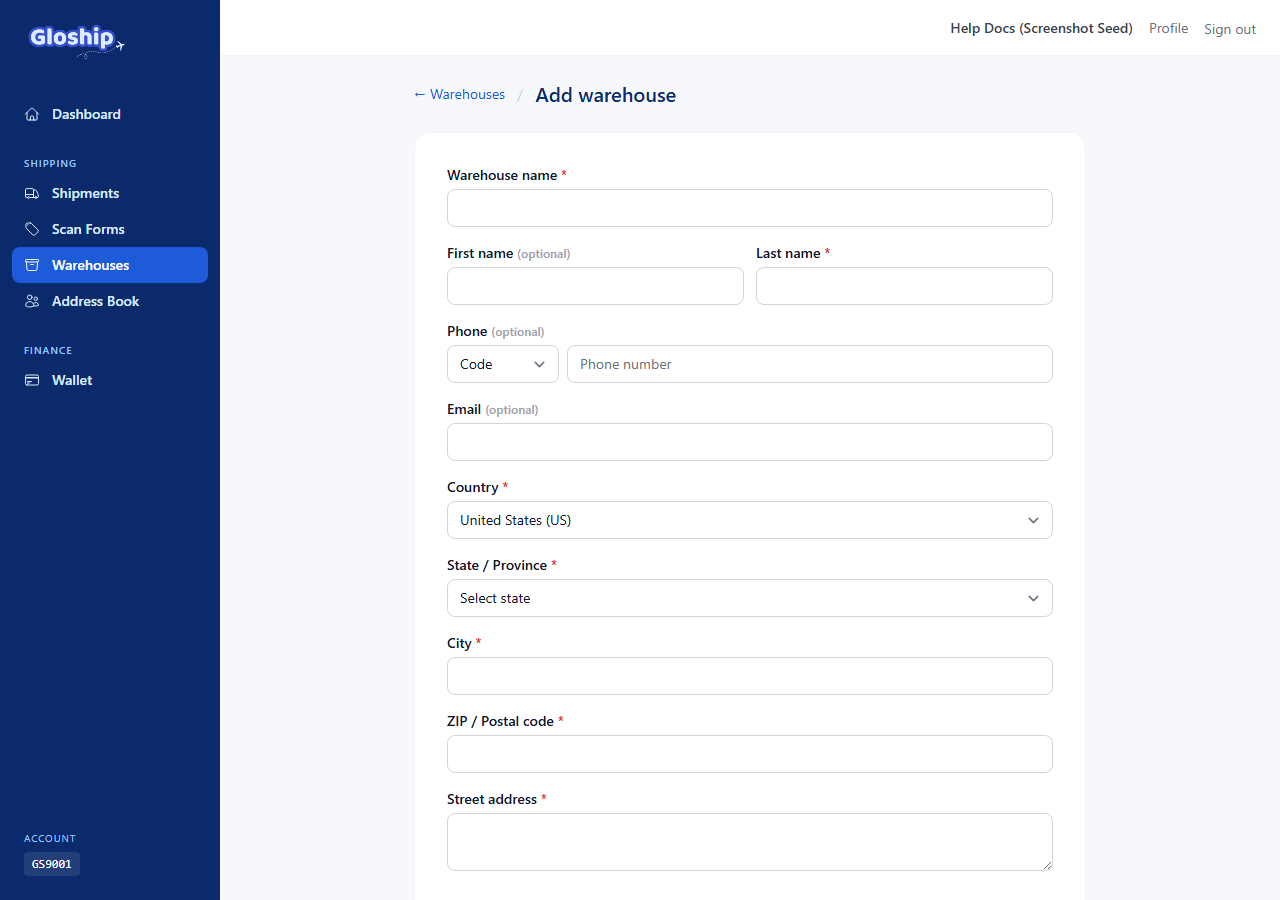
- Click + Add warehouse on the top right.
- Fill the form:
- Nickname — what you call this location internally (e.g. "Main NJ", "Brooklyn studio").
- First name / Last name / Phone — the contact printed on labels.
- Address 1 (required) — street address line 1.
- Address 2 (optional) — second address line (apt, suite, unit, building).
- City, State (US dropdown), ZIP (ZIP+4 supported).
- Click Save warehouse.
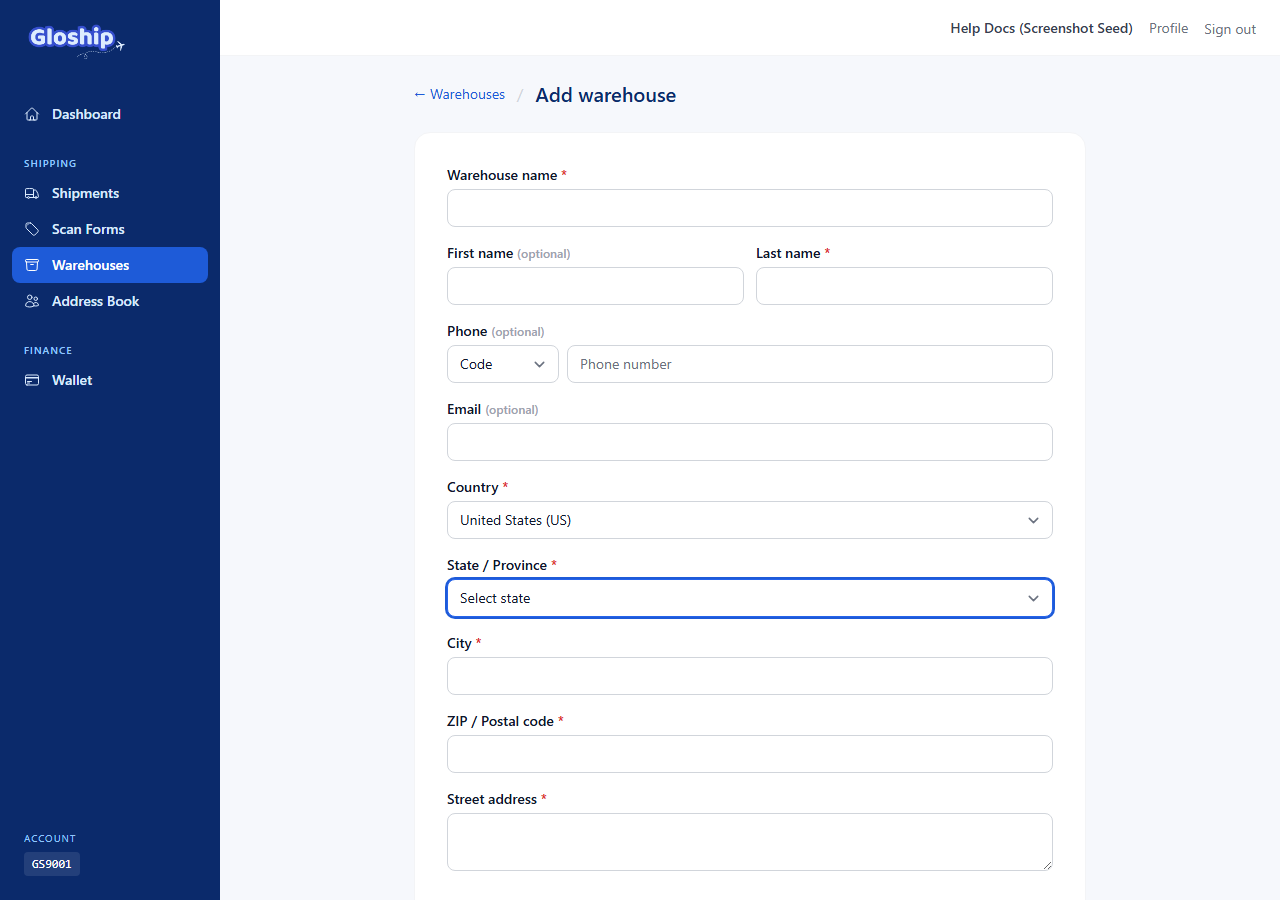
Tip: the state field auto-suggests as you type the abbreviation (e.g.
NJ → New Jersey). It only accepts US states and territories.
Edit or delete a warehouse
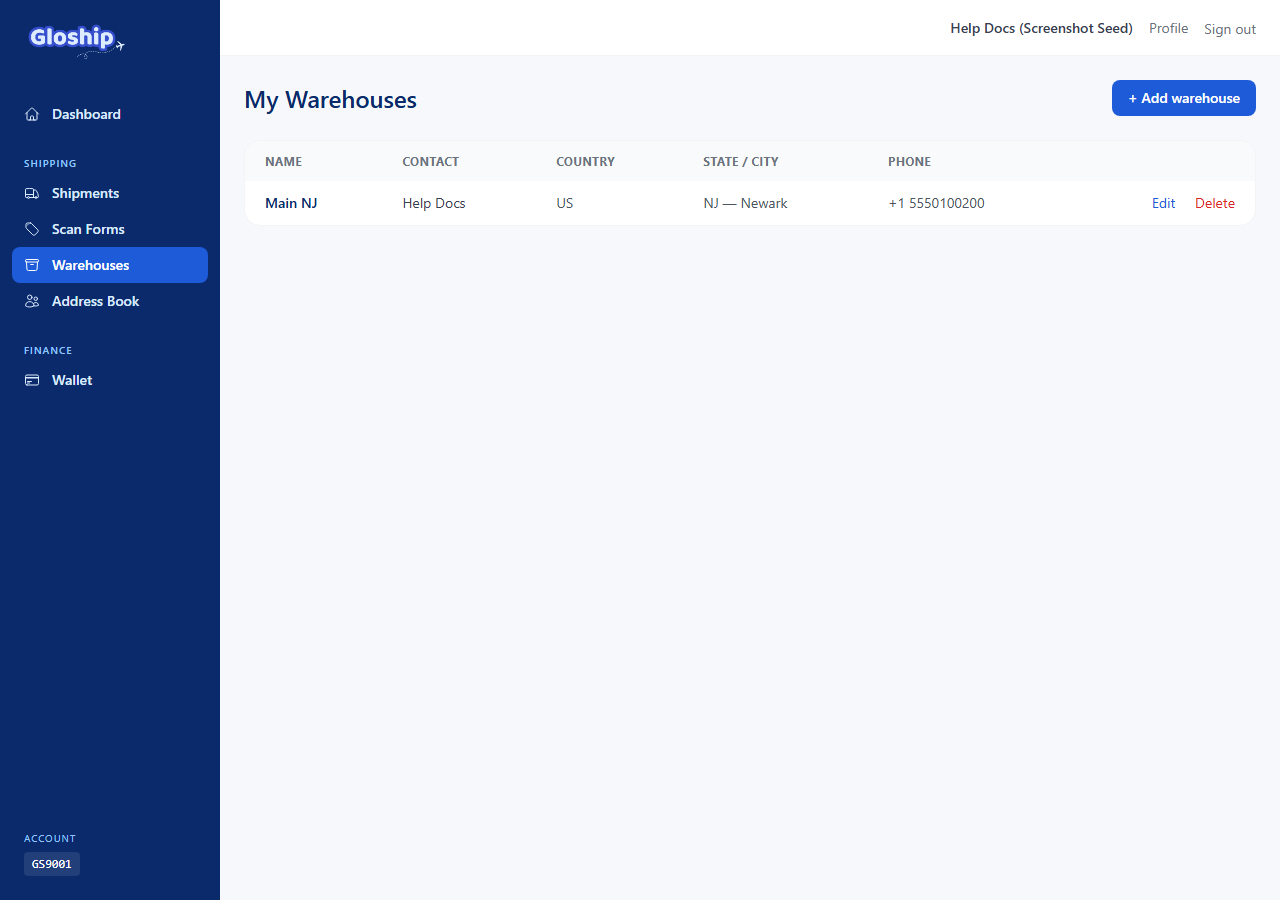
From the index, each row has action buttons:
- Edit — open the same form pre-filled. Save to update. Existing shipments that referenced this warehouse keep the address that was active at purchase time.
- Delete — soft-deletes the warehouse so you no longer see it as a ship-from option. Shipments already created keep working.
Tips for clean data
- Use nicknames that name the location, not the brand (you may add carriers later that read this back to USPS).
- Use the full street format USPS expects ("Ave" instead of "Avenue" is fine; avoid punctuation).
- ZIP+4 produces slightly faster carrier acceptance but is not required.
- Phone number must include the country code
+1for US addresses (the field handles this automatically).
Troubleshooting
- Can't save — "state is invalid". Pick from the dropdown rather than typing the full state name; only the standard 2-letter abbreviation is accepted.
- Don't see the warehouse in the shipment dropdown. Hard-refresh the create-shipment page; the dropdown caches the warehouse list briefly.
- Deleted by mistake. Email support@thegloship.com — soft-deleted warehouses can be restored.
Related articles
- Create and manage shipments — Quote rates, buy labels, and ship single or bulk packages.
- Cancel a shipment and get a refund — Request cancellation, understand admin approval, and refund timing.
- Use SCAN forms for bulk handover — Hand many shipments to USPS in one scan. Build a form at end of day.