
Create and manage shipments
Quote rates, buy labels, and ship single or bulk packages.
Quote rates, buy labels, and ship single or bulk packages.
Single vs Bulk
GloShip offers two paths to create shipments. Use whichever fits how you work:
- Single shipment (
/shipments/create) — one order at a time. Best when you have a few labels per day or want to review each rate. - Bulk upload (
/shipments/bulk) — upload an Excel file with many rows, review the quoted batch, then buy all labels at once and download a single merged PDF.
Both paths require: an active wallet balance large enough to cover the chosen service, and at least one warehouse.
Create a single shipment
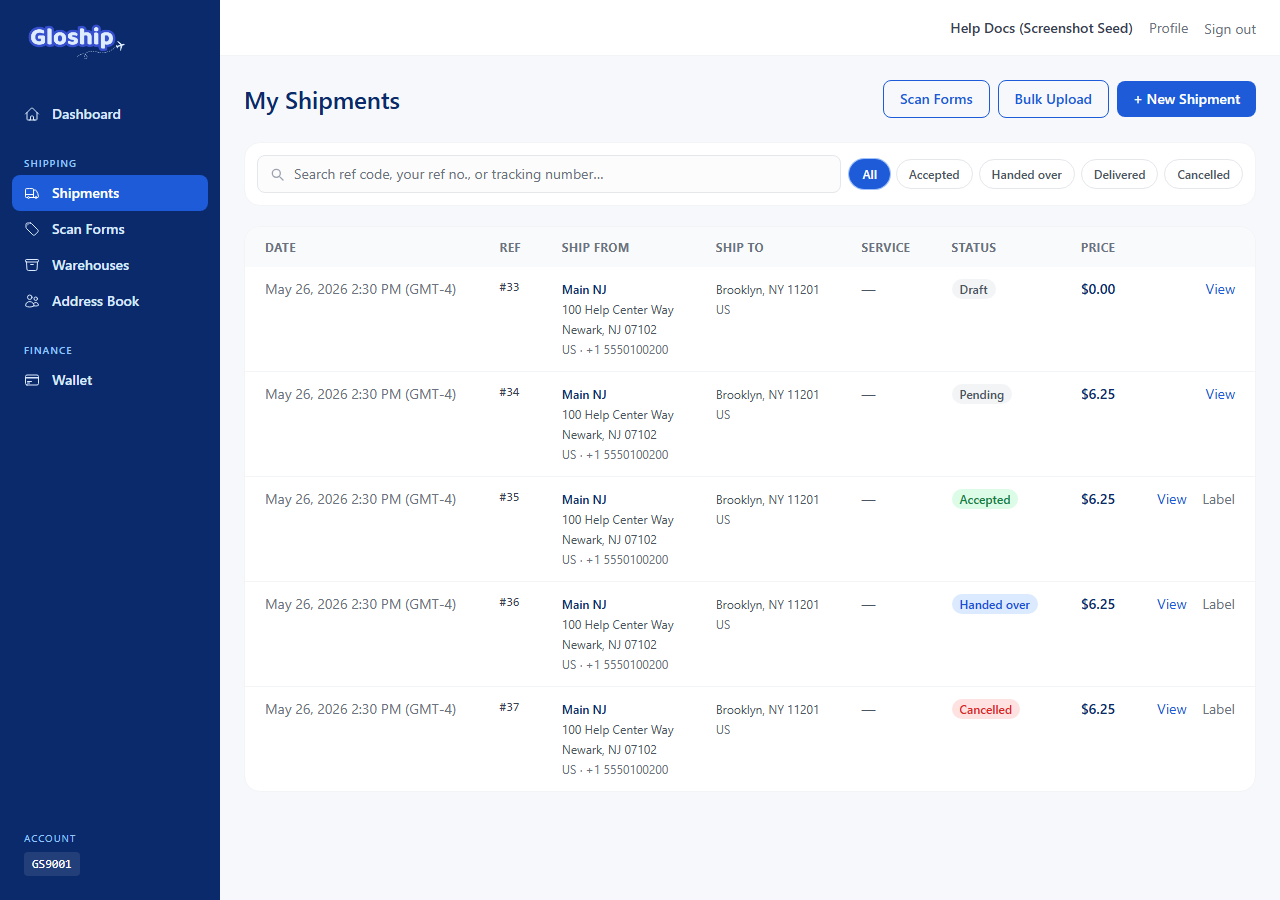
- From the top nav click Shipments, then + New shipment (or visit
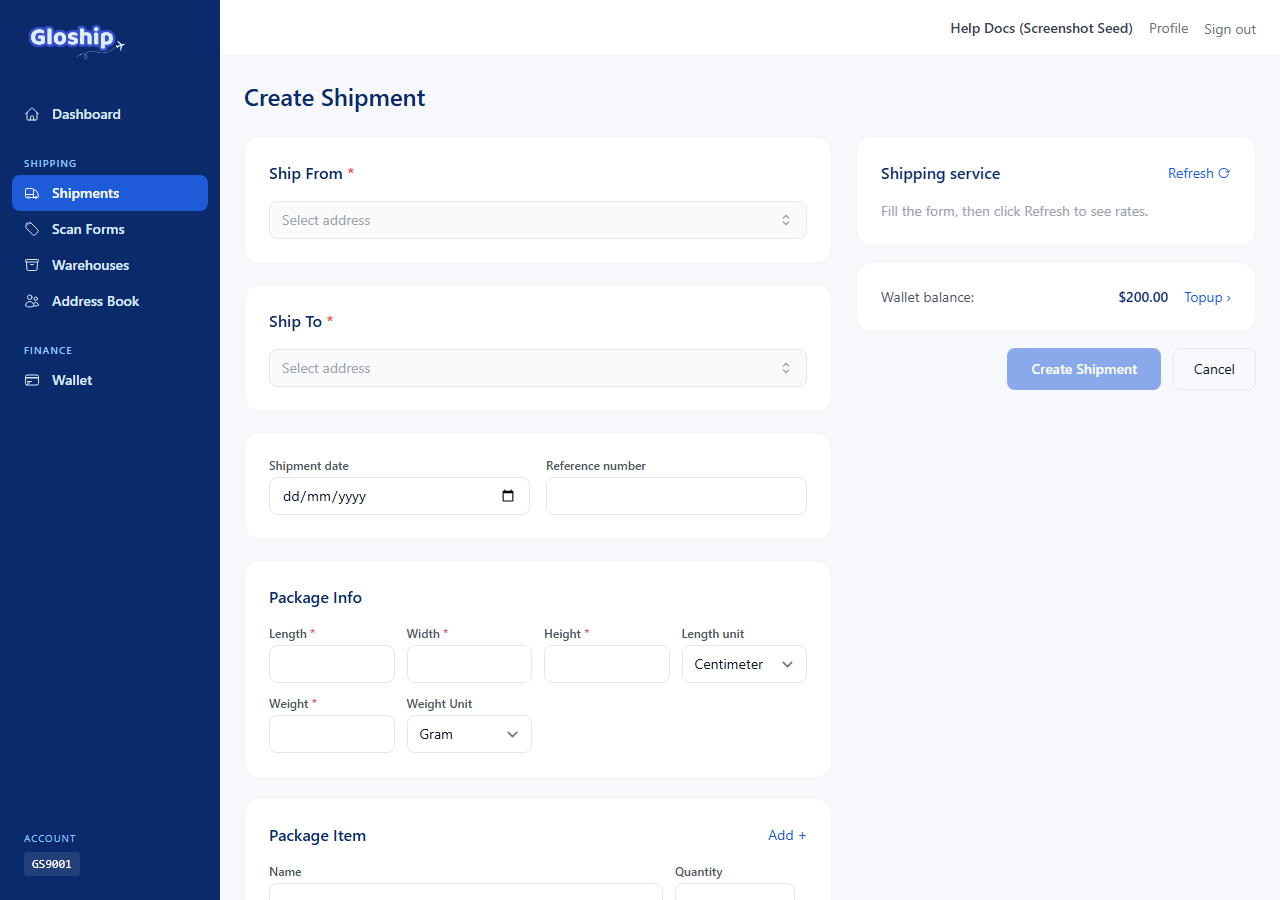
/shipments/create). - Ship From — pick a warehouse from the dropdown.
- Ship To — enter the recipient's name, phone, and full address (country, street line 1, optional street line 2, city, state, ZIP). You can save the address to your address book for future reuse.
- Package Info — add parcels:
- Weight + Weight Unit (lb / oz / kg / g).
- Dimensions (length × width × height) in inches or centimeters.
- For international: declared value and customs items.
- Click Get rates (or simply submit) to fetch live carrier quotes.
Pick a service and buy the label
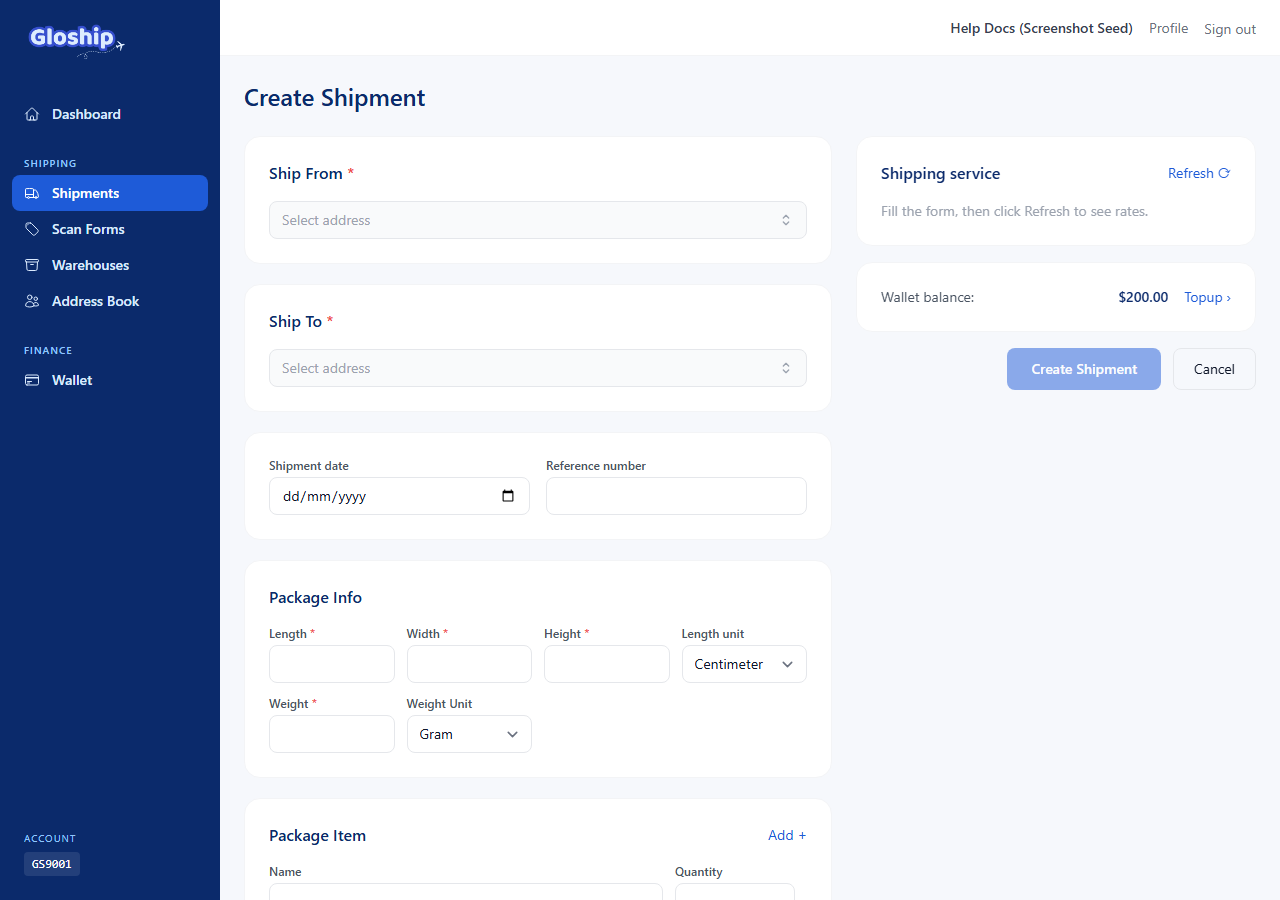
- The Shipping service table shows every quote returned for your parcel — carrier, service name, transit time, and price.
- Click the row you want. The price is highlighted.
- Click Create Shipment at the bottom. We reserve the funds, call the carrier to buy the label, and store the PDF.
- You are redirected to the shipment detail page. Click Label to open or download the PDF.
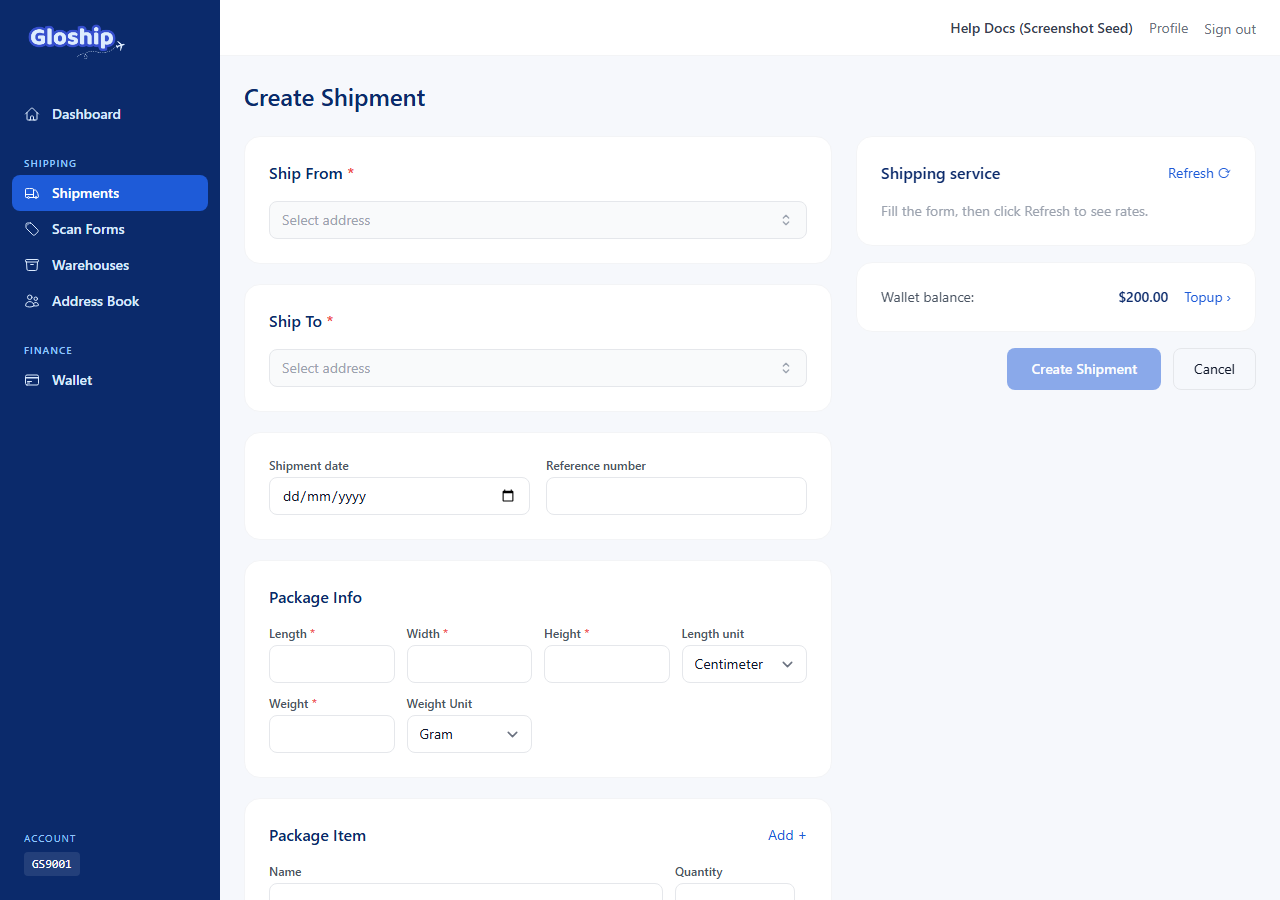
Tip: if you can't afford the chosen rate, the buy step fails and we release the reserved funds. Top up and try again — your draft details are preserved.
Bulk upload (Excel)
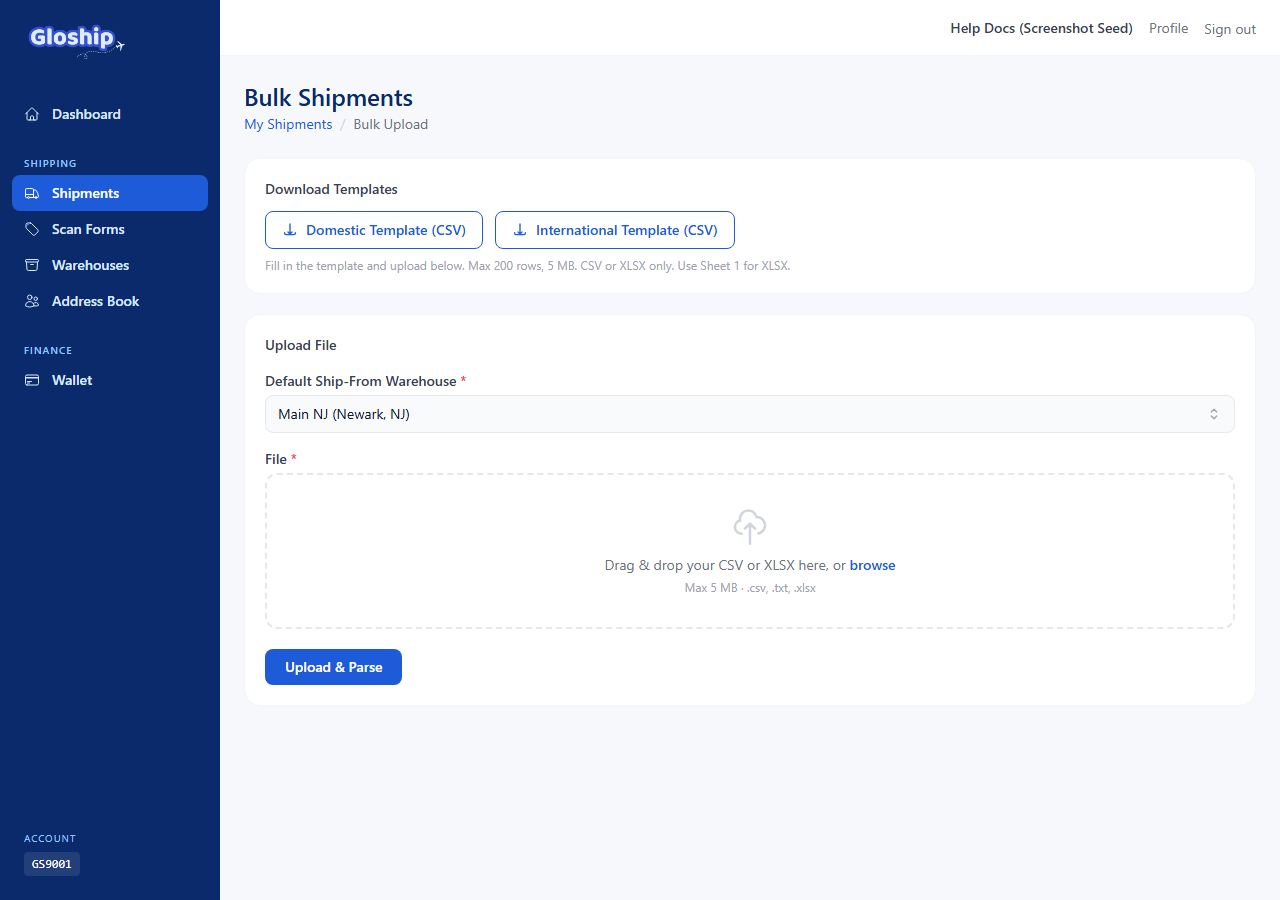
- Visit
/shipments/bulkfrom the Shipments page (link "Bulk upload"). - Click Download Templates — pick the Domestic or International template that matches your destination.
- Fill the template in Excel. One shipment per row. Required columns are highlighted.
- To Street and To Street 2 — line 1 (required) and line 2 (optional; apt, suite, unit) of recipient address.
- Drag the file onto Upload File (or click to browse).
- The batch page shows each row's quote, weight, and any validation errors.
- Fix any failed rows (or skip them), then click Buy all at the top.
- Once purchased, you can Download labels (PDF) as one merged file and Export a CSV with tracking numbers + signed label URLs.
Rate limits: Buying a batch is throttled (5 per minute) and downloading the merged PDF or export is throttled (10 per minute). If you hit a limit, wait a minute and retry.
Manage existing shipments
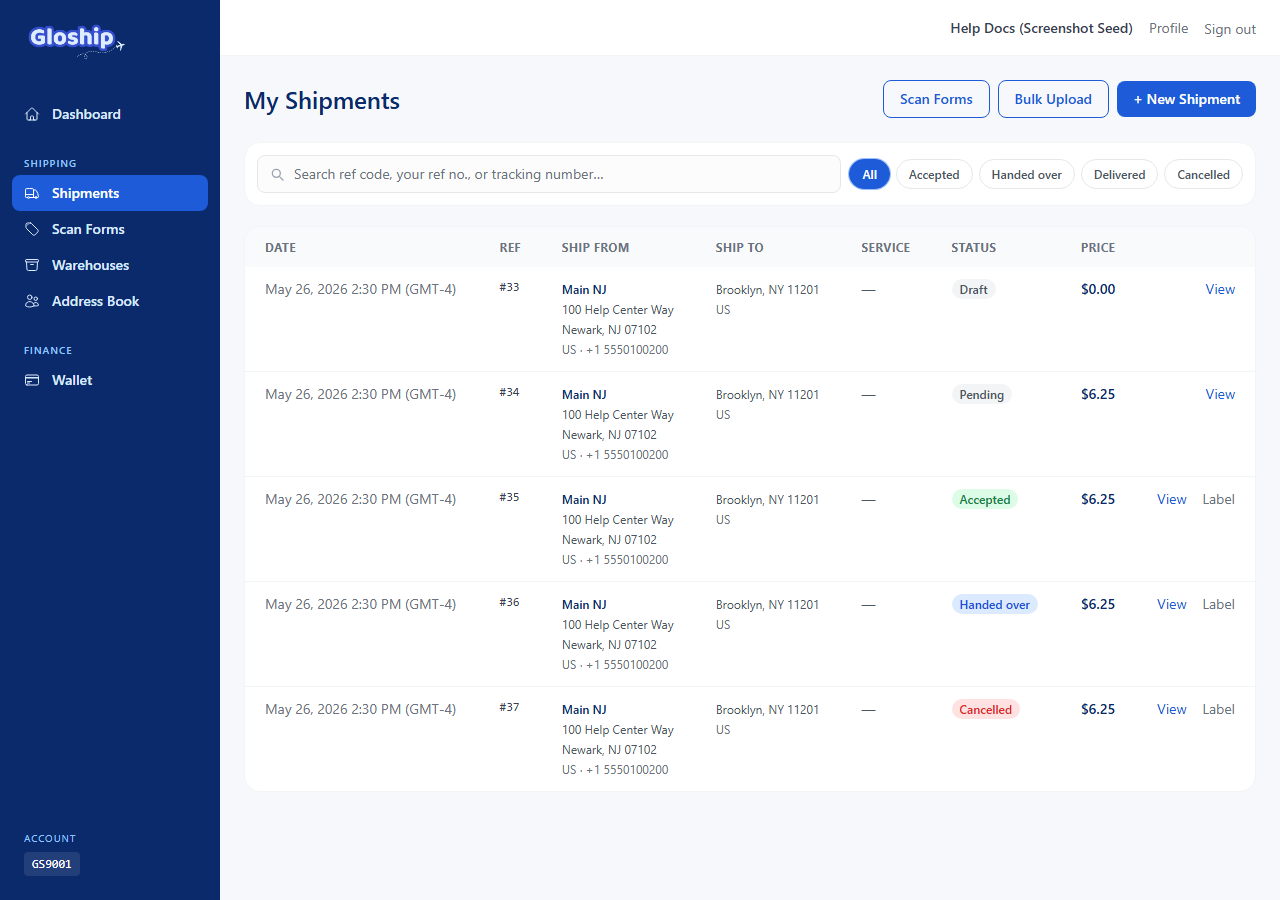
- List view at
/shipments— search by tracking number or reference, filter by status, paginate. - Detail view shows the parcels, carrier service, sell price, billed weight, and the full event timeline (created → accepted → handed over → delivered).
- Click Label on any row to reprint the PDF — no extra cost.
Troubleshooting
- No rates returned. The carrier rejected the parcel (commonly: dimensions too large, destination unsupported, missing required field). Re-check the values; try a different service category if available.
- "Buy" fails with insufficient funds. Top up the difference and try again from the quote screen.
- Label PDF doesn't open. Some browsers block popups for direct PDF links — right-click and "Save link" instead, or click again with popups allowed.
- Bulk row stuck at "quoted". The carrier returned a quote but never finalized — click Requote on that row to refresh, or Retry if buy failed.
- Need to cancel? See Cancel a shipment and get a refund.
Related articles
- Manage warehouses — Add the US addresses you ship from. Required before creating shipments.
- Cancel a shipment and get a refund — Request cancellation, understand admin approval, and refund timing.
- Use SCAN forms for bulk handover — Hand many shipments to USPS in one scan. Build a form at end of day.