
Read your wallet transactions
Understand topups, spends, refunds, FX rates, and reference codes.
Understand topups, spends, refunds, FX rates, and reference codes.
Open Transaction History
- Click Wallet in the top nav.
- Click Transactions (or visit
/wallet/transactions).
This is the complete audit trail of every USD movement on your account.
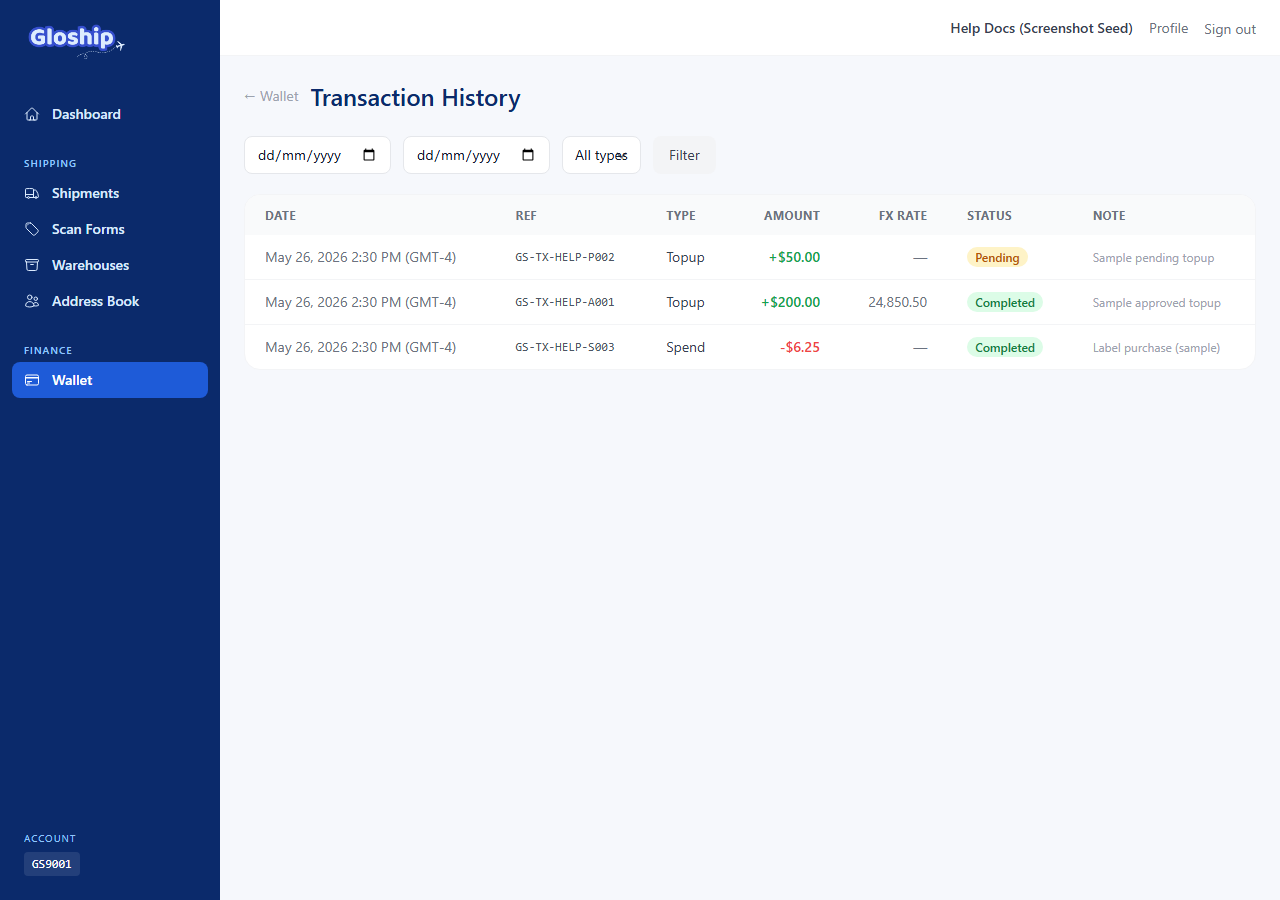
Transaction types
| Type | Direction | When you see it |
|---|---|---|
| topup | Credit | You add funds via Pingpong. |
| spend | Debit | You buy a label. |
| refund | Credit | A label is cancelled / refunded. |
| extra | Either | Manual adjustment by admin (promo, correction, etc.). The note explains why. |
| adjust_credit | Credit | Admin added funds to your wallet. The note explains why. |
| adjust_debit | Debit | Admin deducted funds from your wallet. The note explains why. |
Filter and search
The top of the page has filters for:
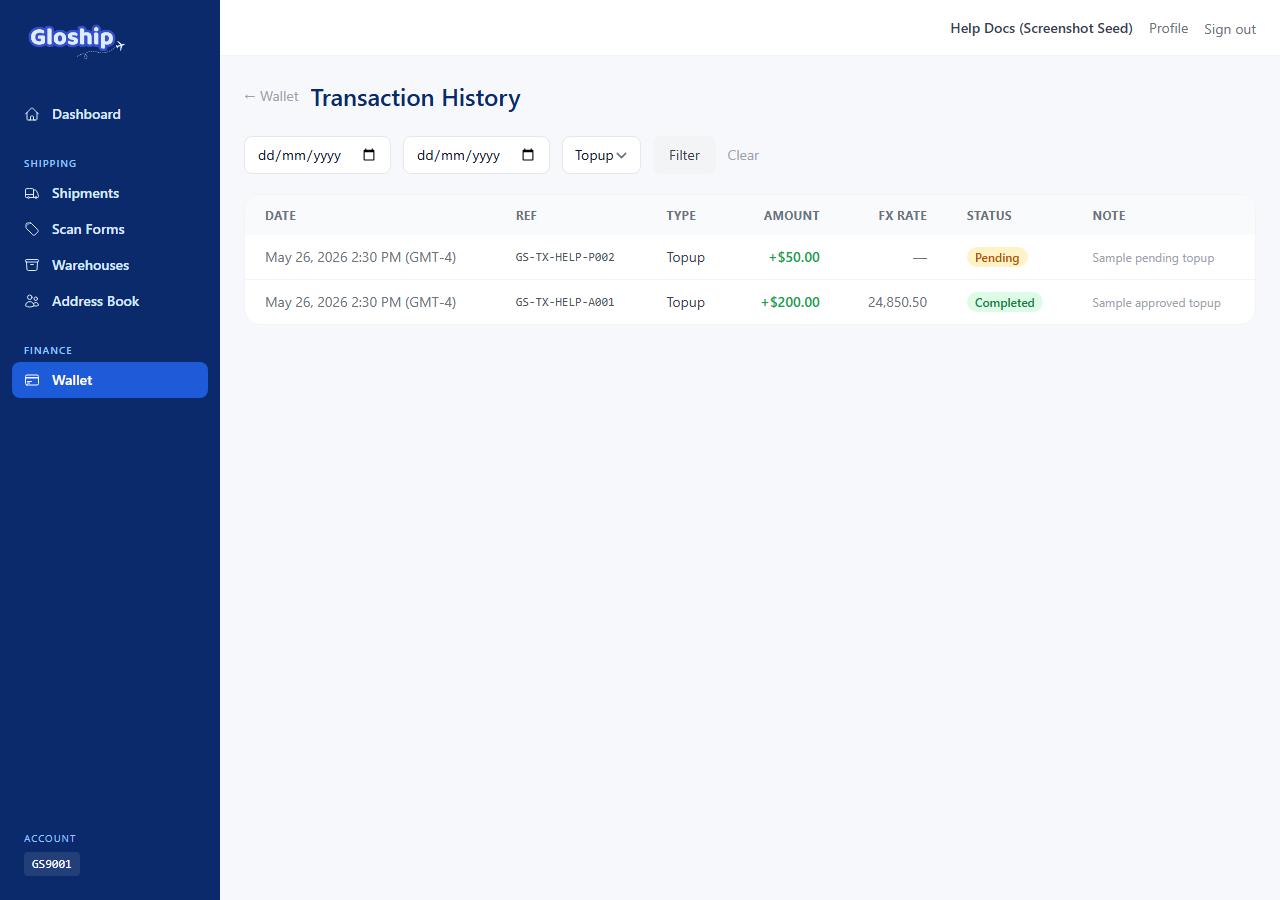
- Type — pick one of topup / spend / refund / extra / adjustment.
- Status — pending / completed / rejected.
- Date range — from / to dates.
- Search — paste a reference code (e.g.
GS-TX-XXXX-YYYY) to find a specific transaction.
Click Clear next to the filter row to reset everything.
Columns explained
- Date — when the transaction was created (displayed in your timezone if you set one in your profile).
- Type — see table above.
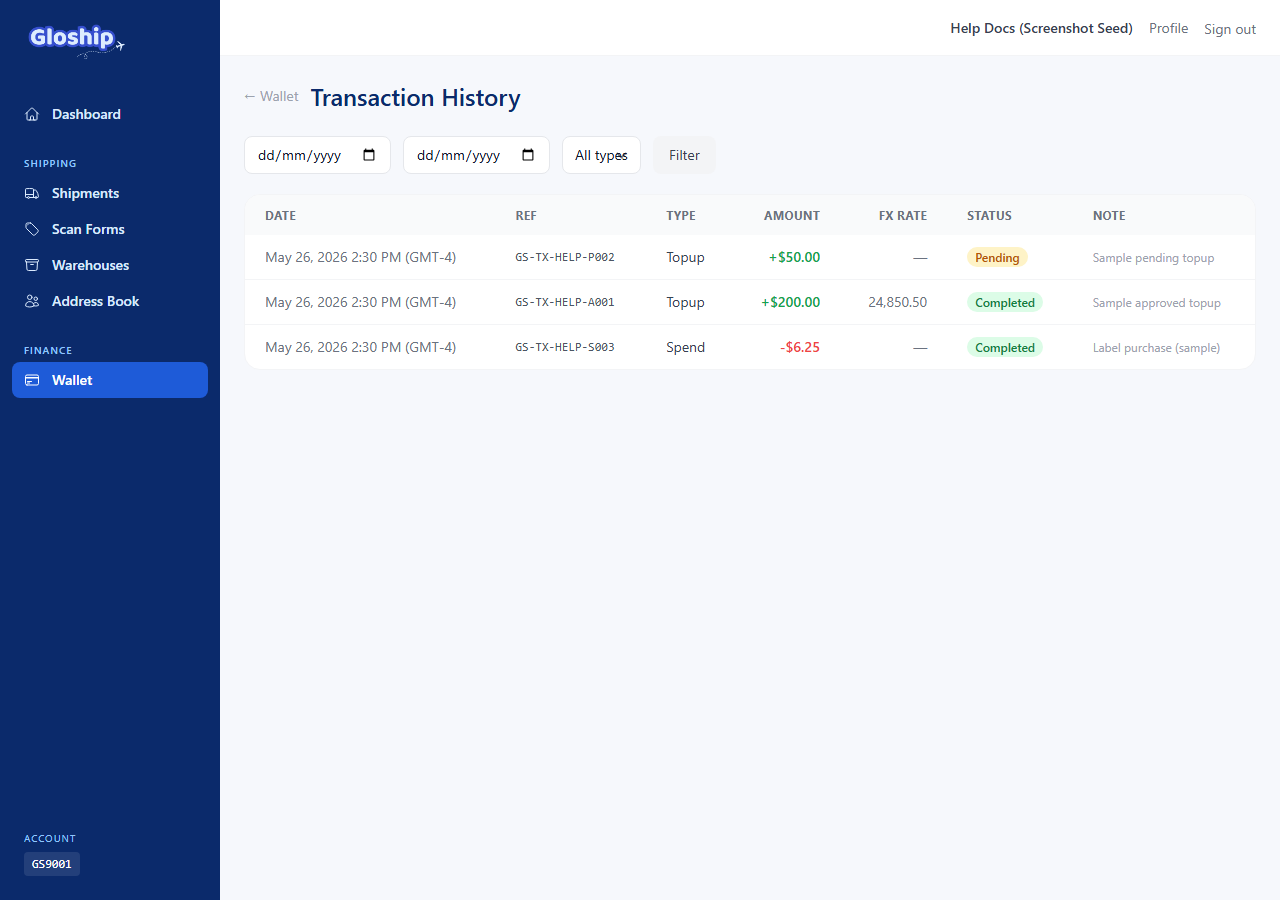
- Status — pending (waiting), completed (final), rejected (declined; row also shows the reason).
- Amount (USD) — signed: positive for credits, negative for debits.
- FX rate — only on topups paid in VND. Shows the USD/VND rate applied at approval (Vietcombank reference rate + markup).
- Reference code — the unique tag like
GS-TX-XXXX-YYYY. Use this with your bank statement to reconcile transfers. - Balance impact — how the row affected your available vs pending balance.
- Note — your note (for topups), admin reason (for adjustments), or shipment reference (for spends / refunds).
Status lifecycle
Topup transactions follow:
pending → completed (admin approves)
pending → rejected (admin rejects with reason)
Spend transactions:
pending (funds reserved during quote) → completed (label bought)
pending → cancelled (label buy failed; reserved funds released)
Refund transactions:
pending (waiting on carrier eligibility check) → completed (credited)
Reconcile with your bank
- Find the bank-statement line for your transfer to Pingpong.
- Note the reference code you put in the transfer memo.
- Paste that code into the Search field on the transactions page.
- The matching row tells you the GloShip-side status. If your bank shows the transfer cleared but GloShip still shows pending, see Topup troubleshooting.
Troubleshooting
- I can't find a transaction by reference code. Double-check for typos. The code is case-sensitive and the search is exact-match.
- Balance on the wallet page doesn't equal the sum of completed rows. Pending rows are excluded from available balance — toggle status filter to "pending" to see what's in-flight.
- I expected a refund but don't see one. Refund only happens after admin approves cancellation AND the carrier confirms eligibility. See Cancel a shipment and get a refund.
- Need an export for accounting. Filter to the period you want, then ask support@thegloship.com for a CSV export — a self-serve export is coming.
Related articles
- Top up your wallet — Add USD funds via Pingpong bank transfer. Admin approval clears the balance.