
Use SCAN forms for bulk handover
Hand many shipments to USPS in one scan. Build a form at end of day.
Hand many shipments to USPS in one scan. Build a form at end of day.
What is a SCAN form?
A SCAN form (USPS Shipment Confirmation Acceptance Notice) is a single barcode that represents many shipments at once. When the USPS driver scans this one barcode, every label listed on the form is officially accepted into the postal stream — no per-package scan needed. This dramatically speeds up end-of-day handover when you ship in volume.
When to create one
- You have at least one shipment with status accepted from the same warehouse.
- You are about to hand the parcels to USPS (driver pickup or post-office drop).
- You want one piece of paper, not a per-package scan.
SCAN forms are optional. Without one, the carrier still scans each package individually when it enters their system — just slower.
Create a scan form
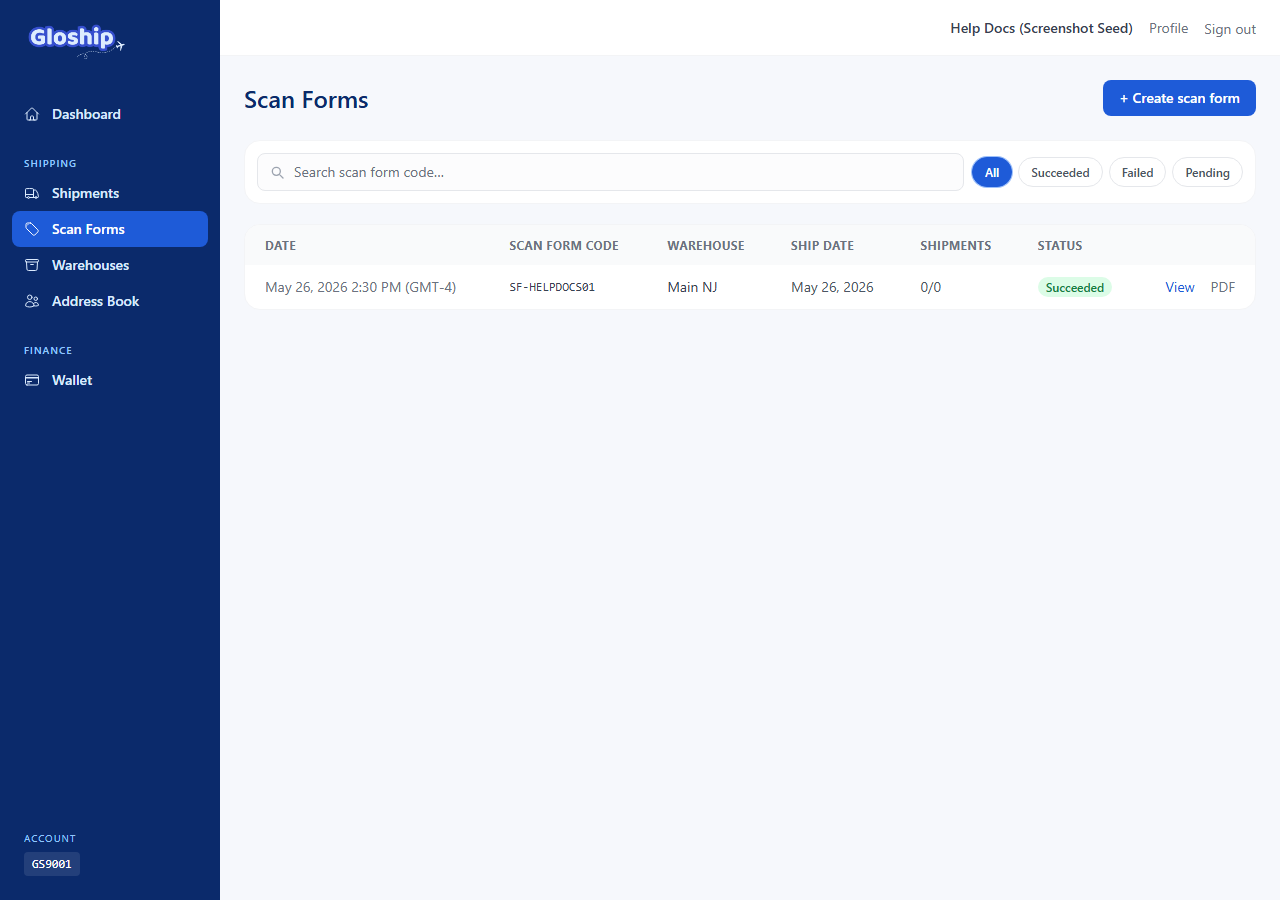
- Go to
/shipments/scan-forms(Shipments → Scan Forms link). - Click + New scan form (or visit
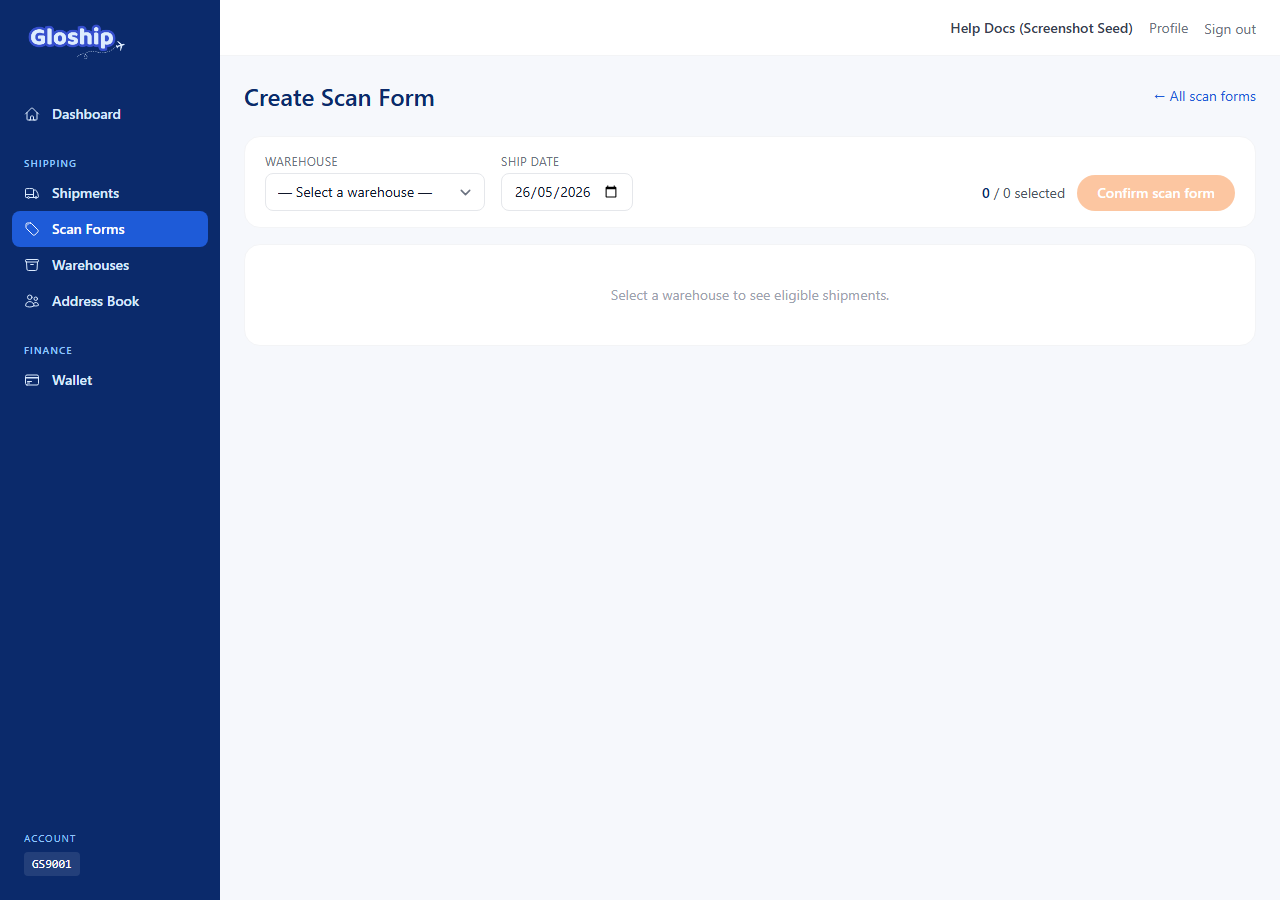
/shipments/scan-forms/create). - Filter by ship date — only shipments whose ship date matches your filter are eligible.
- Filter / pick a warehouse. All shipments on the form must ship from the same warehouse.
- Tick the shipments you want to include from the Available shipments list.
- Click Submit scan form. GloShip calls USPS via Gori to register the manifest.
Download and present the PDF
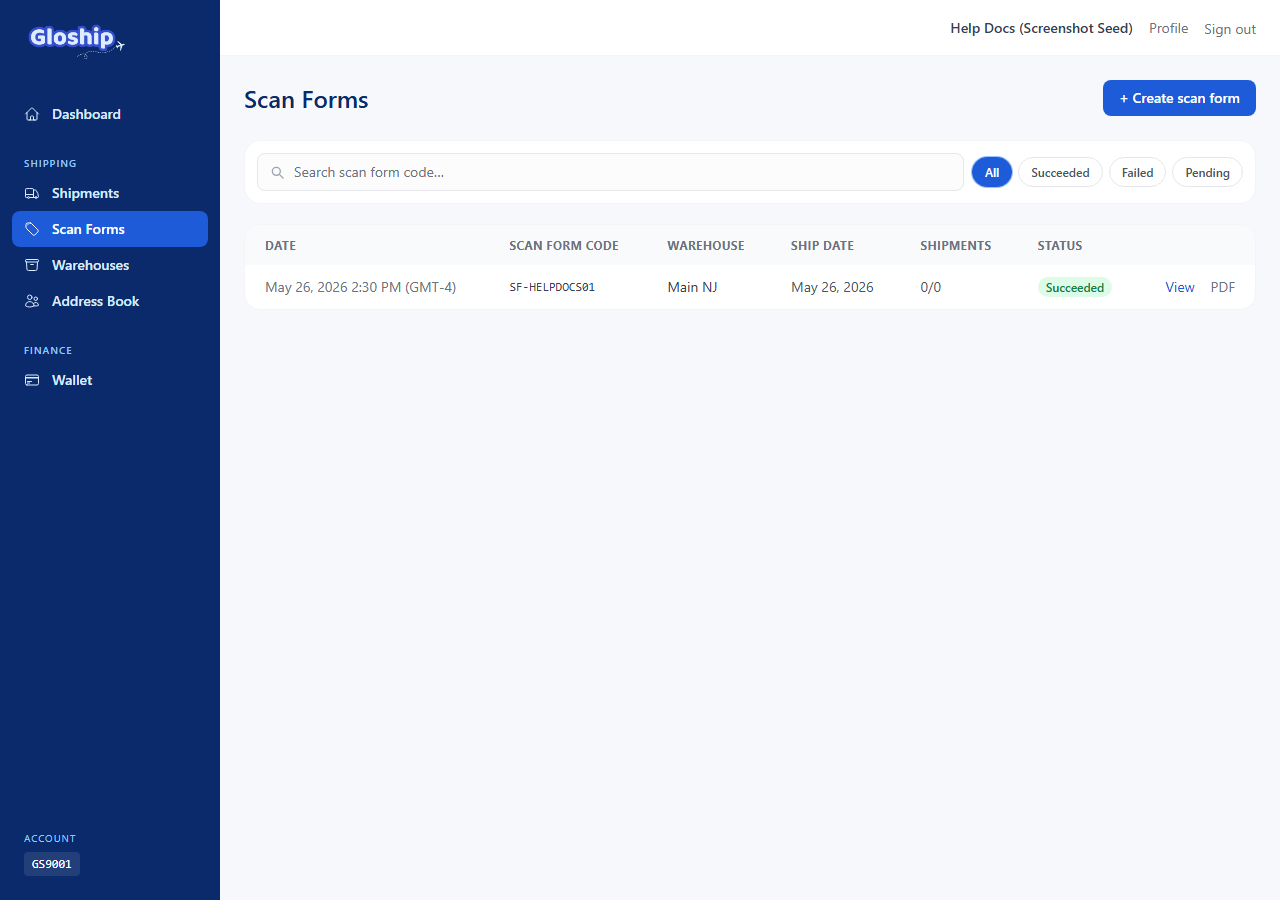
On success the scan form has a unique code (e.g. SF-XXXX) and a downloadable PDF. Print it and hand it to the USPS driver (or attach to your handover paperwork).
- From the index, click the form to open the detail page.
- Click Download PDF. The PDF contains the barcode + the list of included tracking numbers.
What happens to your shipments
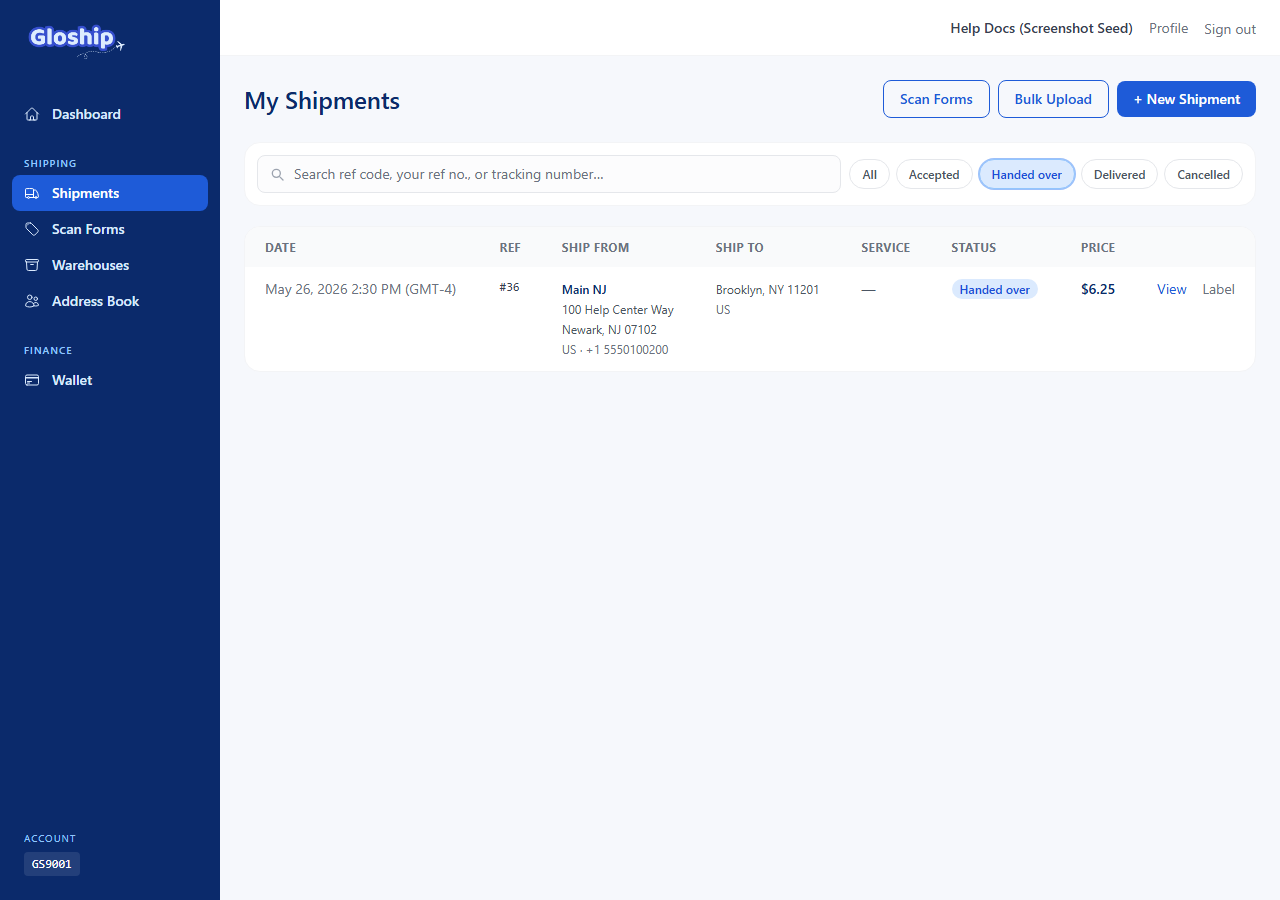
Every shipment included on a successful scan form transitions:
accepted → Manifested → Out for delivery
Submitting the form moves the shipments to Manifested (a scanform_submitted event is added to the timeline). Once you confirm the batch was physically handed to the driver, they move to Out for delivery. From there GloShip's automatic tracking sync handles the final status change to Delivered without any manual button presses on your side.
Troubleshooting
- A shipment doesn't appear in the available list. It probably isn't
accepted(already manifested, or still pending), or it ships from a different warehouse, or its ship date doesn't match your filter. - The form was submitted but some shipments are still "accepted". Those rows had a concurrent handover during submission. The rest of the batch succeeded. Build another scan form to cover the leftovers (or wait — automatic tracking sync will catch them within an hour).
- "Needs reconciliation" badge on the scan form. The USPS API call succeeded but storing the PDF failed on our side. Admin will re-pull the PDF from USPS within one business day — no action needed.
- USPS rejected the manifest. The error appears on the create page. The most common cause is a label that was bought too recently — wait a few minutes and resubmit.
Related articles
- Manage warehouses — Add the US addresses you ship from. Required before creating shipments.
- Create and manage shipments — Quote rates, buy labels, and ship single or bulk packages.
- Cancel a shipment and get a refund — Request cancellation, understand admin approval, and refund timing.